HOME
TOPICS
ABOUT ME
Mea photographa! I ended up with a confusing account of one of the most wonderful features of modern image editors.
Al Fasoldt's reviews and commentaries, continuously available online since 1983
Why 'getting rid of the jaggies' is not really a menu item -- and how to do it anyway
May 8, 2001
By Al Fasoldt
Copyright © 2001, Al Fasoldt
Copyright © 2001, The Syracuse Newspapers
Guys hate to be wrong. It's in their genes.
Guys on soapboxes have an even bigger problem. When they're wrong, everybody within earshot knows about it.
So I'm starting this week's article by wishing I'd had enough sense to look at what I wrote last week. Writers make this kind of mistake all the time, but we have no excuse for what we end up with.
In my case, I ended up with a confusing account of one of the most wonderful features of modern image editors.
I wrote about interpolation. Everything I said about interpolation was true - it can take the jagged edges (or "jaggies") out of your digital pictures, it's easy to use, and so on - and the photos that ran as examples of interpolation were accurate.
Duh! But I forgot to tell you where to find the menu that does interpolation. I'm not sure what I was thinking about, but it sure wasn't helpful.
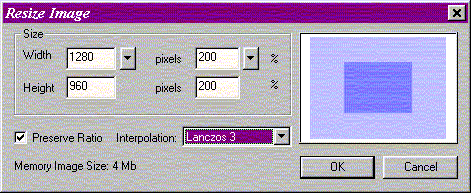
Here's what I should have said. I was referring to Photo-Brush -- you can see the Photo-Brush resize dialog box here -- but the general point I should have made applies to all image-editing software.
Getting the jaggies out of your images is nearly always part of another function. When your software resizes your image, it's forced to deal with groups of picture elements (called pixels). It has to take out pixels (if you want it to make the picture smaller) or add pixels (if you want to make the picture larger).
So pixel interpolation is part of image resizing. In nearly every case, no matter what program you are using, on a Windows PC, a Macintosh, a Linux computer, a BeOS computer or any other kind, you'll find your choices for interpolation under the same menu that does image resizing. (It might not be called interpolation. It might just be referred to as "method" or something like that.)
In Photo-Brush, for example, you won't find the interpolation settings until you open the "Image" menu and then choose "Image Size."
Interpolation is related to image resizing for the same reason that loosening your belt is related to having too much for dinner. You can't let your image-editing software absorb a lot of extra pixels when it makes a photo larger without letting it figure out where they should go.
And they can't just go anywhere. Well, I take that back. If every photo you take is a picture of a plain window frame - a plain, simple rectangle, in other words - then resizing that plain box is a simple matter. Your image software can just put two pixels where one was before. Or it can stick five pixels each time it encounters two pixels in the original.
That sort of image resizing takes a small, blocky image and makes it into a large, blocky image. If the original image is a picture of a box, a blocky image is fine. (After all, that rectangular shape is itself a blocky image.) But it you're like me and take pictures of people and animals and scenery, blockiness is the last thing you want. You do not want your photo-editing software to turn the junior cheerleading squad into Lego figures when you enlarge the picture you took at half-time..
And that's the point. When you want your software to make an image larger or smaller, something has to give. Your software isn't doing its job unless it can figure out which blocky pixels to use and which ones to throw away. It can't make the new version of the image look good unless it can smooth things out.
Look at the examples of image smoothing that ran with last week's article and you'll see what I mean. They're on the Web at at the Technofile Web site, or you can reach the article directly by cliking this link.