HOME
TOPICS
SEARCH
ABOUT ME
Al Fasoldt's reviews and commentaries, continuously available online since 1983
Turning lemons into lemonade:
What you can do when pictures don't turn out right
Nov. 2, 2001
By Al Fasoldt
Copyright © 2001, Al Fasoldt
Images Copyright © 2001, Robert C. Fasoldt. All rights reserved.
If you've ever taken priceless photos only to discover that they got fogged in the camera, you'll sympathize with my brother Bob. After a cruise to Puerto Pico, he was appalled to find some of his best pictures were ruined by a foggy haze.
Apparently, excessive humidity fogged up his camera. Was he stuck with his bad photos?
At first, we both thought he was out of luck.
Despite his long experience using photo-editing software, he couldn't get rid of the haze. He asked me to help, but I couldn't find a way to do it, either.
But then we realized that failure was just another word for an opportunity that hadn't been explored. I turned some of his fogged-up pictures into stunning specialty photographs. Others got changed into works of art.
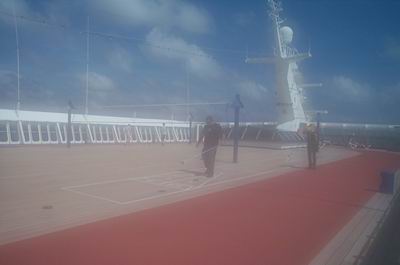
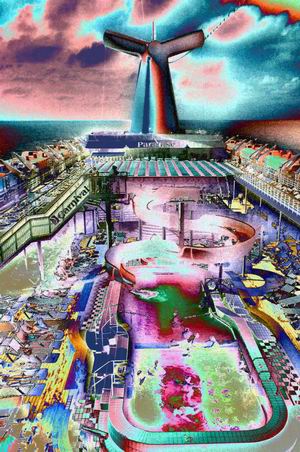
Photo above was badly fogged. We couldn't take out the fog, so I changed the nature of the image, as you can see here. The second set of photos, below, is even more dramatic. Instead of pictures that were ruined, my brother had pictures that were interesting and even whimsical.
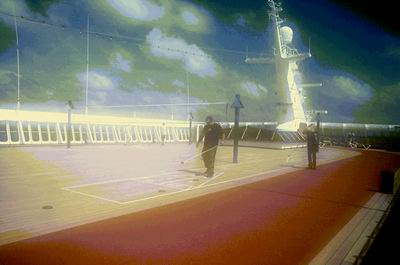
Any good image editor probably would have done most of the magic I performed, but the program we used is a champ at this kind of thing. It's Photo Brush, my favorite photo editor. You can download a tryout copy from www.mediachance.com. Be sure to download the extras that add features to Photo Brush. (They're free.)
You can see examples of what I did with Photo Brush in the illustrations that accompany this article. They're also viewable, in full-size, spectacular color, on my Web site as part of the Web version of this article. (Technofile articles have been online since 1983.) The address: www.twcny.rr.com/technofile.
Note that we didn't rescue his pictures. We did something else.

Rescuing photos that are damaged means putting them back the way they were before. This hardly seemed possible. So, instead of doing a half-baked job, we gave these photos a new life by changing them in the editing software.
You can do the same thing. Image editing isn't hard, and it's very safe. As long as you always remember to work on a copy of the image -- never, EVER work on the original -- you can't ruin things if your hand slips or your mouse makes the wrong clicks.
What kind of changes can you make? I would not be exaggerating if I said you have no limits. I'll mention only some of the possible changes you can make.
Here are some of the enhancements.
Crop the image. After judging the Stars Magazine digital photo contest, I was convinced that the single biggest mistake digital photographers make is forgetting to crop their pictures. Very few images come out of the camera perfectly composed. Nearly all images can use at least a small amount of cropping. Some need a great deal.
Sharpen the entire image.
Sharpen selected parts of the image.
Sharpen using "unsharp masking" (either the entire image or parts of it). "Unsharp masking" is a special kind of sharpening that has become common in most image-editing programs.
Sharpen parts of the image (using either of the sharpening methods) while blurring other parts. You could blur the background, for example, while sharpening the foreground.
Extend the tonal range by making the blackest areas of the image truly black while making the white areas truly white. This is sometimes called "Auto Balance" in program menus.
Adjust the color balance. If you've ever struggled to get the picture on your TV right, you know what color balance is. You don't want things too green or too purple. Good software lets you adjust color balance easily. (The adjustment is sometimes called "White Balance," since it is based on how the camera responds to light with all colors mixed in -- in other words, to white light.)
Adjust the color intensity. You can often add "punch" to a picture by boosting the color, but sometimes that simply makes the picture look like it came from your brother-in-law's old TV. Sometimes the best way to enhance a digital picture is to tweak the color in the opposite direction, reducing the overall color level.
Turn that splotchy color image into an acceptable black-and-white picture. Digital photo enthusiasts who ignore this trick are wasting a lot of otherwise good photos. What I'm talking about isn't actually "black and white" image conversion, of course; it's conversion to grayscale. (Black and white images have nothing but black pixels against a white background; grayscale images have hundreds or even thousands of shades of gray between black and white.)
Windows users have no excuse for not trying this, because the best software for turning color images into black-and-white (meaning grayscale) pictures is free. Go to www.mediachance.com and look for the site's free image programs. The black-and-white conversion utility I recommend is called BWorks. (If you have Photo-Brush, you have this already, since it's built into Photo-Brush -- didn't I already tell you it was the world's greatest image editor for Windows? -- but you might want to install the free stand-alone version of the black-and-white conversion utility so you can do conversions at times when you don't want to run the full editing software.)
Fix crazy tilts in pictures of buildings. The wider the lens, the more likely you'll see the effects of lens curvature. Good software can fix this easily. Look for a "warp" or "tilt" option.
Get rid of dirt, dust and scratches on those priceless pictures of your family. Scans of old pictures can end up looking like closeups of a cat-groomer's couch if everything isn't absolutely clean. Check to see if your image editor has an option for reducing or eliminating dust and scratches. (Photo-Brush does, but that shouldn't be surprising. Remember what I just said about Photo-Brush?) Doing this right takes some practice, so make a couple of copies of a scratched or dirty picture and set aside an hour or two for trial runs before you let your talents loose on the good stuff.